ENGR 058 (Control Theory) Laboratory 1
Introduction to the data
acquisition system
In this lab you will learn how to use MATLAB and Simulink to develop and run a simple program that interacts
with the real world. The exercise is somewhat contrived, but will use many
of the features of the programs that you will use in lab throughout the semester. Although the program shell is given
to you, you should make an effort to understand how it works because you will be
using it as the basis for programs throughout the semester (you don't have to
use it, but it will probably make your life a bit easier).
If you are interested in the capabilities of the
PCI 6221 data acquisition
card, you can find them on the National
Instruments web site.
No single part of this lab should take a long time. If you are having
difficulties, or you are unfamiliar with the equipment in the lab (e.g., signal
generators and oscilloscopes), please come to me for help.
Apparatus
You will need a PC with data acquisition card and software, a signal generator, an oscilloscope,
and assorted cables and connectors. These are all in Hicks 310. Please put away any equipment you use when you are
done. There are only two sets of apparatus, so you may need to schedule
with other groups to avoid conflicts.
Creating a running a real-time model with MATLAB/Simulink:
- Start MATLAB.
- Create an empty directory on a disk where you have read
and write privileges.
- Change the current MATLAB directory (left pane in
MATLAB window when "Home" tab is selected) so that it shows the folder you created.
- Download the file rtwShell.slx into your new directory. Rename the file (but keep the
".slx" extension).
- Start Simulink (type "simulink") at the
MATLAB prompt; this may take a minute or two.
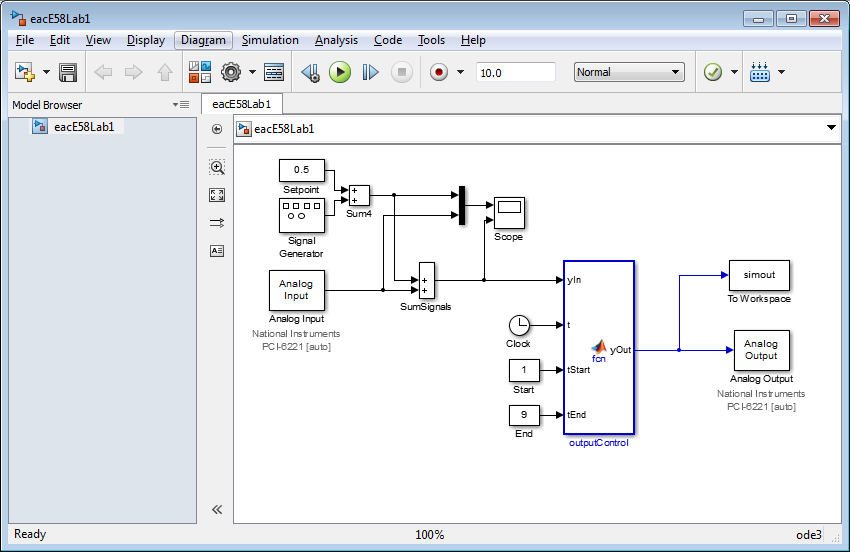
- From Simulink, open the model file that you just
renamed (or just double-click on it). It should look similar to the one shown below.
Note: You may get a warning that the "Analog Input" and
"Analog Output" blocks reference a board that is not installed. If this
happens just double click on the "Analog Input" block in the Simulink
diagram and follow the prompts to add the board.
- Open the Analog Input block and set the sample time to
0.01 seconds, and the input channel to 0. Either select the PCI 6221
board from the drop-down list, or install it as a new board. The dialog
box
should look as shown below.
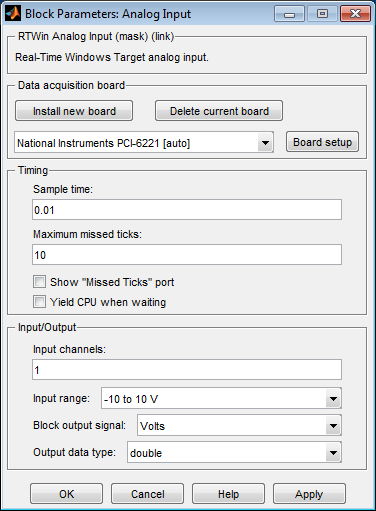
Note that the analog channels in this window are labeled from 1 to 8; the
"Analog Inputs" on the Terminal board are labeled from 0 to 7 (i.e., ADIN 0
through ADIN 7). Make sure you
pay attention to this discrepancy in numbering when you are connecting signals to the box.
Also - there are RCA to BNC adapters available in Hicks 310, or from Ed
Jaoudi (the connectors on the board are RCA (Radio Corporation of America)
connectors, the oscilloscope and function generators have BNC (Bayonet
Needle Connector) connectors).
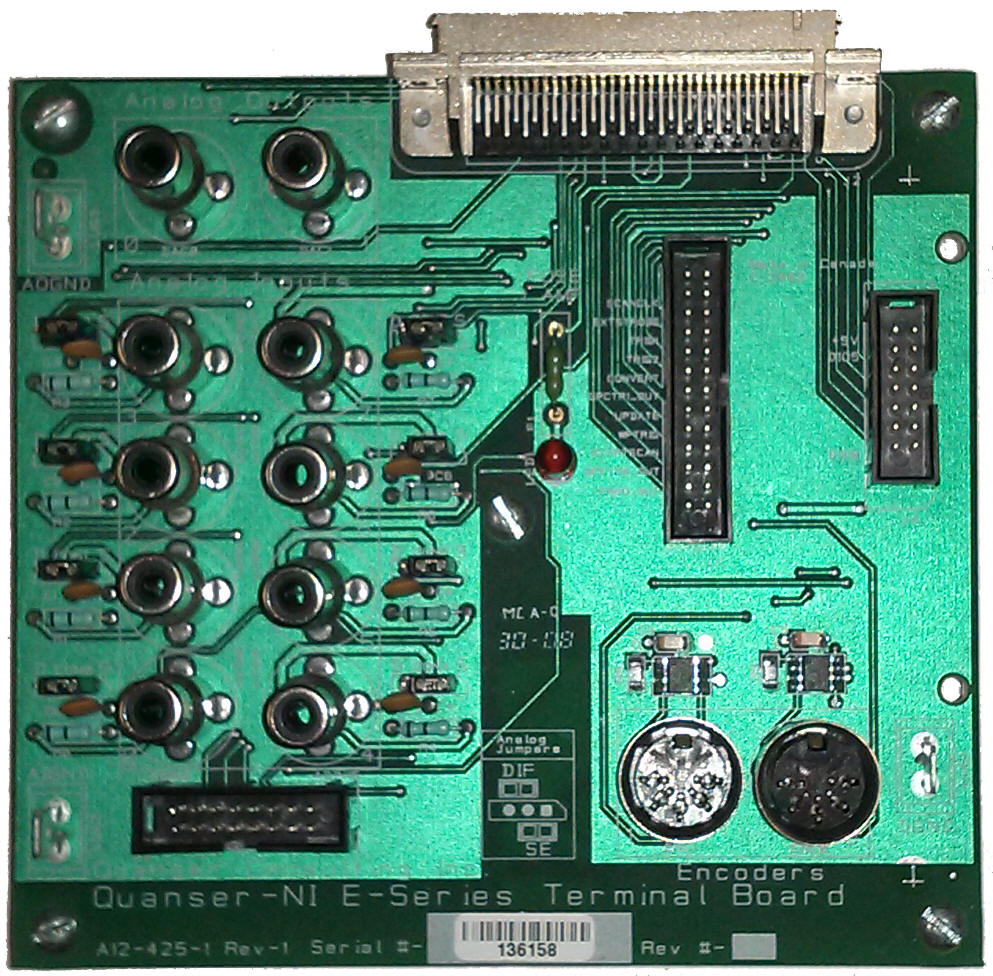 Terminal Board
- Open the Analog Output block and set the output channel
to 1 and the sampling time to -1 (so that it uses the same sampling time as
the Analog Input block).
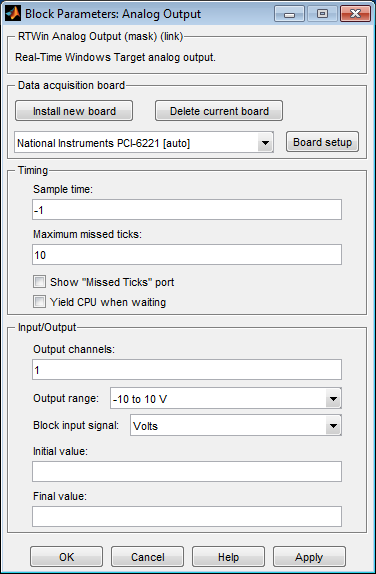
Note that the analog
output channels in this window are labeled from 1 and 2; the
"Analog Outputs" on the Terminal Board are labeled 0 and 1 (i.e.,
DAC 0 and
DAC 1). Make sure you pay
attention to this when you are connecting signals to the board.
- Now connect a signal that is approximately a 1V peak to peak, 2Hz
sine wave that is centered around ground from a signal generator in the lab to Analog Input channel 0
(ADIN 0) on the Terminal Board (this is input channel 1 according the Analog Input block dialog
box) and to an input on the oscilloscope.
- Connect the channel 1 output
(DAC 0) to another oscilloscope input oscilloscope in the lab
(this is output channel 1 according the Analog Output block dialog box).
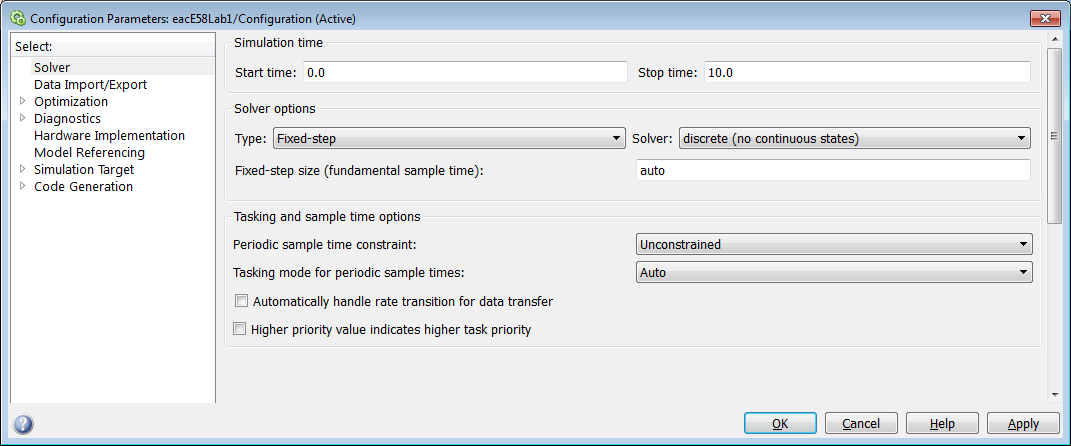
- Set the simulation to run for 10 seconds (go to
and
set the end time to 10 seconds). Also set the solver type to "Fixed Step" and the solver to "discrete".
- Open the Simulink scope (by double clicking on it).
- Make sure the appropriate C compiler is chosen by entering "mex -setup"
at the MATLAB prompt. Select the "Microsoft Software Development Kit (SDK) 7.1". You should only have to do this
the first time you run the software.
- Compile and run the the model by going to
. You
can observe the progress in the MATLAB window. This may take some time to
finish (the Simulink model is transformed into a C language program and
compiled).
- Make sure that the Simulation is set to
External ().
Connect to the model you just built, , and then run it,
.
You can rerun the code by repeating this step - the code only needs to be
rebuilt if you change the Simulink model.
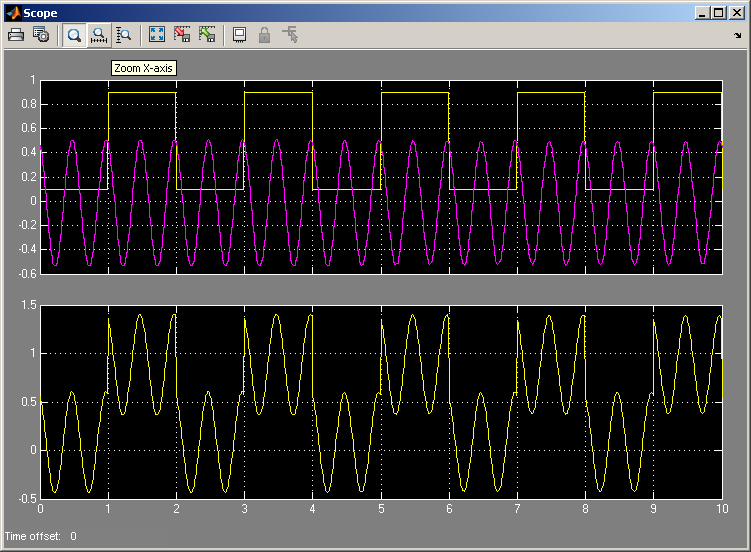
- Check to make sure that the output on the Simulink scope matches that on
the scope in the lab. The Simulink scope should look
something like that shown below. This is after right clicking on the
graphs and choosing "". Make sure
you understand what is being displayed on the diagram below and how it
relates to the Simulink model; you will need to know this for the report.
Simulink Scope Output
Oscilloscope Output
Yellow is the sine wave, and green is the output of the
D/A. Note
differences between this graph and previous; t=0 for oscilloscope is
arbitrary with respect to the Simulink simulation. Any output data
from t<1 or t>9 is set to zero (the output data below only exists for 8
seconds, as opposed to 10 seconds in the graph above).

- Because we have the "To Workspace" block (labeled "simout"
on the Simulink diagram), the data has also been sent to the MATLAB
environment. To access it, go to the MATLAB window and type the following
commands (input has white background, MATLAB output has gray background).
Your results may vary slightly.
>> whos % Lists all variables. "simout" is a structure.
Name     Size   Bytes    Class
simout   1x1    13594    struct array
Grand total 1628 elements, 13594 bytes
>> simout % "simout" has three fields: time, signals, blockname
simout =
time: [800x1 double]
signals: [1x1 struct]
blockName: 'rtwShell/To Workspace'
>> simout.signals % simout.signals is a structure with three fields: values, dimensions, label
ans =
   values: [800x1 double]
   dimensions: 1
   label: ''
>> t=simout.time;           % time variable
>> y=simout.signals.values; % data
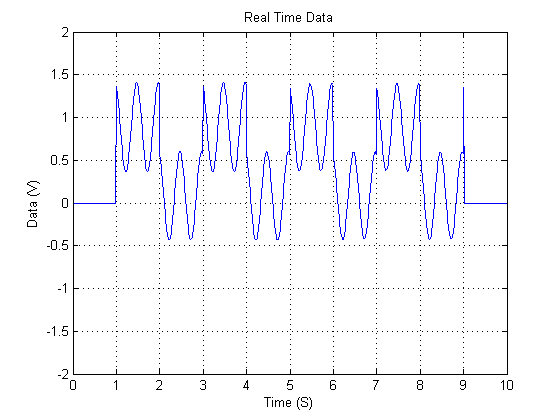
>> plot(t,y)                % plot (see below)
>> xlabel('Time (S)');
>> ylabel('Data (V)');
>> title('Real Time Data')
>> axis([0 10 -2 2]);
>> grid on
Important: The simulation sometimes
fails and Simulink won't let you run another simulation, If this
happens try entering the following commands at the MATLAB prompt:
>> rtclear
>> rtunload
Lab Procedure:
Task 0:
- Delete the block labeled "Add Signals" from the Simulink
Diagram. We are now going to create our own block that does the same thing.
- Open the Simulink Library browser (go to
from the Simulink menu).
- From the Library Browser add a function from "".
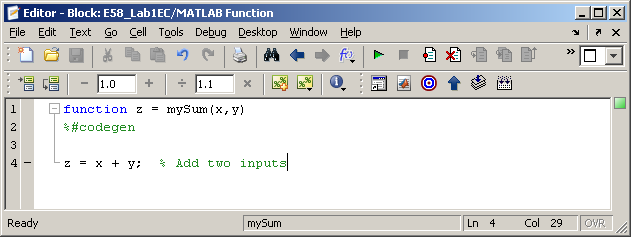
- Double click on the function and rename it mySum.
Add text as shown below. Make sure you leave in the comment line "%#codegen"
this is necessary for proper compilation.
- Save the block. There should now be a block in
your Simulink diagram with two inputs and an output that is labeled "mySum."
- Connect the new block in the place of the "Add Signals"
block that you deleted above.
- Compile and run the model to make sure it behaves as
you expect it to.
- Save your Simulink model.
Task 1:
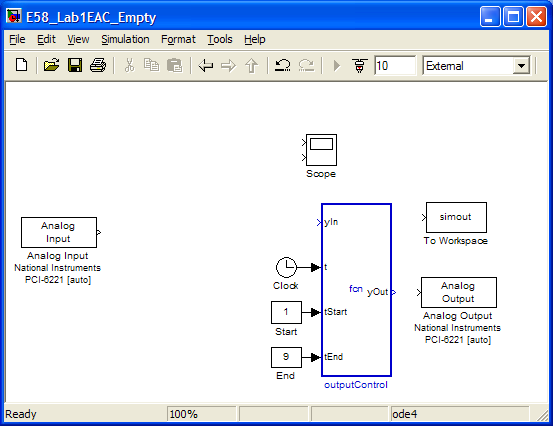
- Save your Simulink model under a new name.
- Edit it so it looks like the one shown below.
- Add to the model so that it:
- samples data every 0.01 seconds for 5 seconds,
- outputs a quantity equal to twice the analog input for 0≤t≤4 seconds,
and outputs 0 for t>4 seconds,
- shows output and input on the Simulink scope,
- and saves both output and input to simout (see
below if you are unsure how to do this)
- Connect a 2 volt, peak-to-peak, sine wave at 10 Hz from a signal generator
to the analog input of the Data Acquisition System and to an oscilloscope.
Also connect the output of the D/A to the oscilloscope. Run the program
and verify that it works as expected. If it takes more
than a few minutes to get everything working, please let me know and I can
give you a hand.
- Go to the MATLAB workspace and use MATLAB to plot both
the input and the output.
- Also get an image from the oscilloscope. To get an image from the
scope hit the "Utility" button on the front of the scope. The bottom of the
scope screen will have labels, hit the button labeled "I/O" and get the IP
address of the oscilloscope. Type the address into the title bar of a browser.
A web page opens from which you can
download data and images.
- Make graphs showing the input and output results when the signal is at
20, 30, 50 and 90 Hz. Make
sure you don't change the sampling rate. Also save data in files.
- Save this Simulink model.
To save several variables to the MATLAB workspace use either the "bus
creator" or "Mux" block from the "Simulink→Commonly Used Blocks" library
in the Simulink browser.


Connect all the variables you would like to save to the left side of the
block (you can change the number of inputs by doubling clicking on the block)
and connect the output to the "Workspace" block, simout.
You can then extract the signals with the following code.
>> simout % "simout" has the same three fields as before
simout =
         time: [1001x1 double]
      signals: [1x1 struct]
    blockName: 'E58_Lab1EC/To Workspace'
>> simout.signals % This time, the "values" field has two columns (one for each variable)
ans =
        values: [1001x2 double]
    dimensions: 2
         label: ''
>> var1=simout.signals.values(:,1);   % 1st variable is 1st column of "values"
>> var2=simout.signals.values(:,2);   % 2nd variable is 2nd column
Task 2:
- Change your model (and give it a new name) so it generates an output that is the
average of the last 5 input points. Do this by using the "Tapped Delay"
block (in "Simulink→Discrete" in the Library Browser). This
generates a vector of the last "n" input values; if you use this as
an input to a "MATLAB Function" block, you can treat it as an n-element
vector. Use a "MATLAB Function" block to do the averaging (instead of just using Simulink
blocks) - you will be using such code blocks in later labs, and I want to make sure
you understand how to use them.
- Repeat the measurements from Task 1 (i.e., input and
output at 10, 20, 30, 50 and 90 Hz).
- Save this Simulink model.
Task3:
- Change your model (and give it a new name) so it generates an output that is the
difference of the last 2 input points.
- Repeat the measurements from Task 1 (i.e., input and
output at 10, 20, 30, 50 and 90 Hz).
- Save this Simulink model.
Report
Strive to be organized. There is no strict format requirement for this
lab and there is no need for a lot of prose. Every graph should be numbered
(i.e., graph 1, graph 2...) and labeled (with a title, an x-axis label with
units, and a y-axis label with units) and should be explicitly referenced in the
report; any tables should likewise be numbered and labeled. There is no
need for separate sections for "Introduction," "Theory," or "Procedure...."
Include the following as distinct sections in your report:
Section 1 of report:
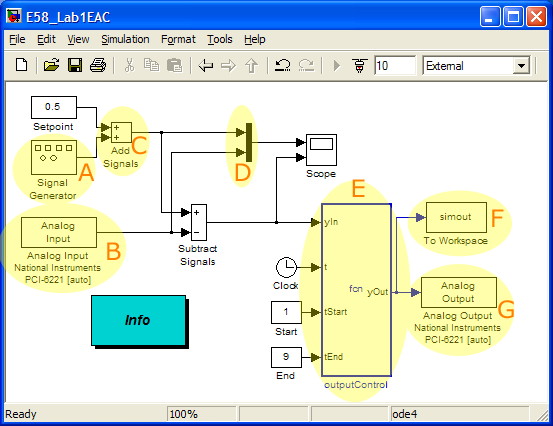
Explain (in one or two sentences each) the
function of each of the highlighted blocks (labeld A-G) in the diagram
below. (10 pts)
Sections 2, 3, 4 of report:
For Tasks 1 through 3, include the following subsections in your
report:
- A printout of your Simulink diagram along with any
well-documented MATLAB code.
You can get a screen shot of a window by selecting it an then hitting
"Ctrl-Alt-PrtScn" on the keyboard. (5 points per task)
-
There are several ways to present the data; consider several and pick the
one that you feel displays the information most clearly. There are lots
of graphs in this experiment, pay attention to organization and
presentation. Neatness and
clarity count. (15 points per task)
Graphs:
- Should be numbered so you can easily refer to it in discussion.
- Should have labels on axes, and a title on the graph.
- Should have inputs and outputs that are labeled and can be clearly
distinguished (even when printed in black and white). In
later labs you will also be plotting experimental and theoretical
results together - these should also be label and clearly
disitinguished.
- Should have identical scales as much as
possible (this makes it much easier to compare result). If you
need to also show detail, consider an additional graph with a different
scale.
- Comment on your results. Explain as much as you can. Be clear and concise.
(10 pts per task)
To Turn In:
Turn in a pdf of your report on the course moodle page.
The report
should have 4 sections, and sections 2, 3, and 4 should have three parts
(a, b, c). You don't need a lot of text, but think about how
you present your results; neatness and clarity count. In particular make
sure your graphs conform to format described above.